Group
The Features | Group | Group command is used to group several independent objects into one combined group object. Select two or more objects and click the Features | Group | Group command or right-click on the objects and select Group to create one combined group object. Group objects can be a combination of graphs and drawing objects. The objects in the group can be resized and edited individually. The group is moved as a single object, with all objects in the group moving together.
Creating a Group
-
Select two or more objects in the Plot Window or Object Manager.
-
Click the Features | Group | Group command, or right-click on the selection and choose Group.
-
The objects are combined into a single Group object in the Object Manager.
Editing a Group
After objects are grouped together, the group is displayed in the Object Manager as a Group object with sub-objects. Individual properties of the sub-objects can be edited by clicking on the sub-object in the Object Manager. Properties for that object are displayed in the Property Manager.
-
To edit the entire group: Click on the top-level Group object in the Object Manager. Properties applied here (such as opacity or visibility) often apply to the group as a whole. Move or resize the group object to affect all items within it.
-
To edit a sub-object: Click directly on a sub-object in the Object Manager tree to select it. You can change its properties in the Property Manager or resize/move it independently of the other group members.
-
Sub-objects can be re-arranged in the Object Manager. Click and drag a sub-object in the Object Manager to rearrange to the order objects are drawn in the Group.
-
Adding, Removing, and Rearranging Objects
The Object Manager is the primary tool for managing group structure.
-
Add an object: To add an existing object to a group, simply click and drag the object in the Object Manager and drop it onto the Group object.
-
Remove an object: To remove an item from a group without ungrouping the rest, click and drag the sub-object out of the Group in the Object Manager and drop it elsewhere in the tree.
-
Rearrange order: Click and drag sub-objects up or down within the Group tree in the Object Manager. The drawing order is determined by the list order (objects lower in the list are drawn on top of objects higher in the list).
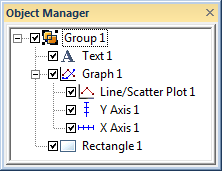
The Group 1 object is the group object. Click on
the Group 1 object to move the entire group.
Click on the objects below the Group 1
object to select and edit individual objects.
Ungrouping
To separate a group back into individual independent objects use the Features | Group | Ungroup command, or right-click and select Ungroup.
Automation Note
While the Edit Group and Stop Editing Group commands have been removed from the ribbon interface to streamline the user experience, these commands remain available and functional within the automation API. Existing scripts that utilize StartEditing or StopEditing methods will continue to work as expected.