Comment
Comments are internal notes, reminders, or explanations that can be placed directly within a Grapher project document. They are useful for highlighting specific data filters, graph settings, or leaving reminders for future edits.
Comments consist of a marker on the page and associated text in the Comments window.
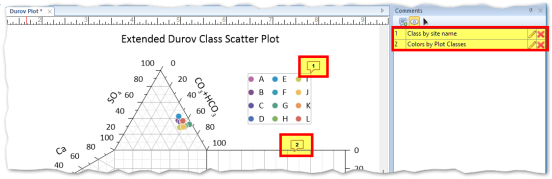
Creating a Comment
To create a comment:
-
Click the Home | Insert | Add Comment or Features | Insert | Add Comment command to enter comment mode. The cursor changes to indicate you are in annotation mode.
-
Click on the specific location in the plot window where you want the comment marker to appear.
-
The Comments window will update to allow you to enter text for the new comment.
-
Press the ESC key, click the Add Comment command again, or click another command to exit comment mode
The Comments Window
The Comments window allows you to view, edit, and manage all comments within the document. You can show or hide this window using the View | Display | Comments command.

The Comments window
-
Toolbar: The toolbar at the top of the Comments window contains options to delete selected comments or toggle the Move/Edit mode.
-
Add Comment: Enter comment mode. The cursor changes to indicate you are in annotation mode.
-
Show Comments: Show or hide comments in the plot window.
-
Select/Move Comments: Click this button to select and move comments in the Plot window.
-
Clicking a comment in the window highlights the corresponding marker on the plot with a light yellow fill. You can select multiple comments in the list by holding CTRL or SHIFT while clicking
-
-
-
Editing Text: Click on a comment in the Comments window list to edit its content.
-
The pencil icon enters editing mode for that comment.
-
The X button will delete the comment, a Grapher warning window will appear before the comment is deleted.
-
Moving and Editing Comments
You can reposition comment markers to ensure they point to the correct data or graph features.
-
Ensure the Comments window is open via View | Display | Comments.
-
Click the Select/Move Comments button in the Comments window toolbar.
-
Select the comment you wish to move.
-
Click and drag the comment marker in the plot window to a new location.
-
Note: You can only drag a comment marker if a single comment is selected. If multiple comments are selected in the Comments window, dragging is disabled to prevent accidental bulk movement.
Comment Visibility and Output
Comments are designed strictly for internal project use and collaboration.
-
Visibility: You can toggle the visibility of all comments on the page by clicking the View | Display | Comments command in the ribbon. When the Comments window is closed, comment markers on the page are hidden.
-
Printing and Exporting: Comments DO NOT appear in printed outputs or exported files (such as PDF, JPG, or Vector exports). They remain saved only within the Grapher Project file (.GPJ), Grapher file (.GRF), and Grapher Template file (.GRT).